Funeral slideshow templates: free options, and ones that fill themselves in
Updated 24 November 2026
The short answer: free funeral slideshow templates in PowerPoint, Google Slides and Canva give you a ready design, but you still place every photo, add the music and export the video yourself. If you would rather not do that work, our four styles act like templates that fill themselves in: you upload the photos and our software builds the film.
This page explains what people usually mean by a template, where to find free ones, what you still have to do yourself, and how our styles compare. We make memorial videos, so we are not neutral, but we have tried to be fair.
What a funeral slideshow template is
When people search for a funeral slideshow template, a celebration of life slideshow template or a memorial video template, they usually want one of two things:
- A ready-made design (a background, frames for photos, a place for the name and dates) that they fill in themselves in a program such as PowerPoint, Google Slides or Canva.
- A quicker way to a finished film, so they don't have to start from a blank screen while also arranging a funeral.
Both are reasonable. Which one fits depends on how much time you have and whether you enjoy that kind of work.
Free template options
PowerPoint
Many people already have PowerPoint on a home or work computer. You can start from one of its built-in designs or a blank slide, add a photo to each slide, set transitions and timings, add a song and save the whole thing as a video. It is familiar and flexible, and it works without an internet connection. Steps are further down this page.
Google Slides
Google Slides is free with a Google account and runs in a web browser. It is easy to share with relatives so several people can add photos. It is built for presenting rather than making videos, so it suits a slideshow that someone clicks through or plays at the service from a laptop. If you need a video file, check the export options before you build around it.
Canva
Canva has a free plan. Its pricing page says the free plan includes more than 1.6 million templates, and its tribute video maker suggests searching for "Tribute video". You can use its royalty-free audio or upload your own songs, invite family to the draft by link, and download an MP4. Canva's help pages say free users can download MP4 videos up to 30 minutes long at up to 1920 by 1080 pixels. If you use elements marked as paid on the free plan, Canva asks you to pay for them, upgrade, or download a watermarked draft. Our page on the Canva funeral slideshow goes through it step by step.
What you still have to do with a template
A template gives you the look. The rest is still yours:
- Place every photo, one slide or frame at a time. With 60 or 80 photos this is the slow part.
- Set the timing so each photo stays long enough to see, usually about 4 to 7 seconds.
- Add the music and make the photos end when the music ends, which takes some trial and error.
- Type the name, dates and any captions, and check the spelling.
- Export a video file and test that it plays, ideally on the screen at the venue.
None of this is hard, but it takes time, often an evening or two. If you like this kind of work, a free template may be the right choice.
Our four styles: templates that fill themselves in
Evermore Tribute works differently. Our own engine builds the film automatically from your photos: you choose a style, upload the photos, pick the music and watch a free watermarked preview of the whole film, usually in about a minute or two. You don't design anything, and in return you can't move elements around or pick fonts.
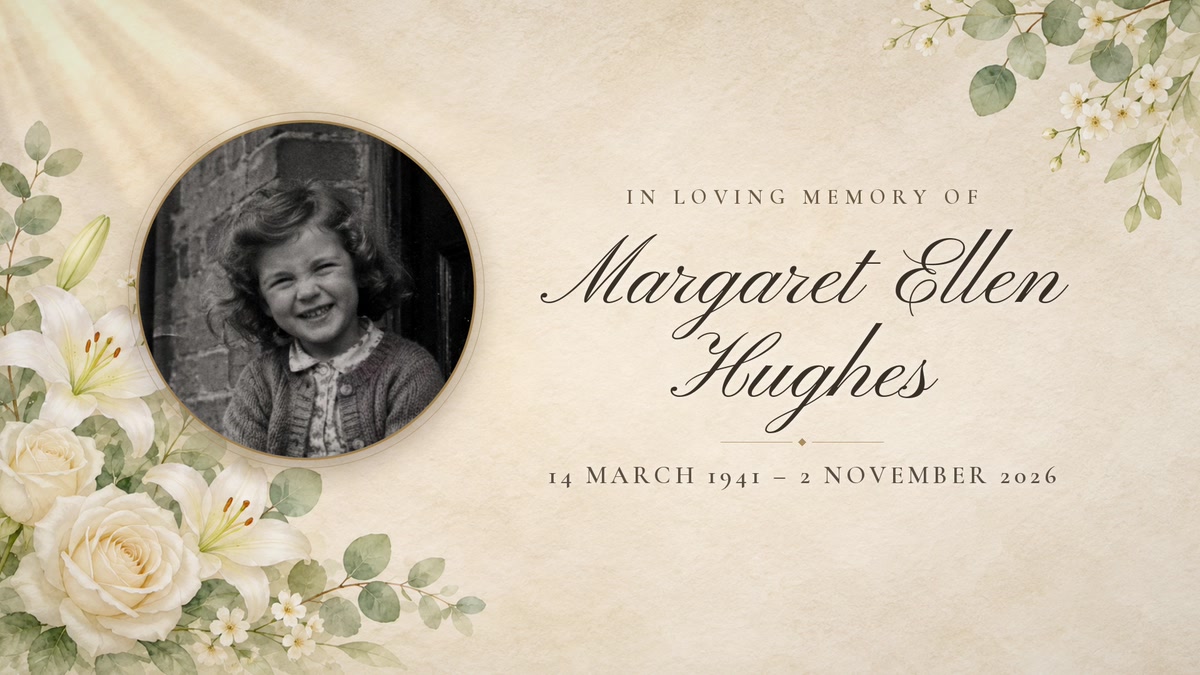
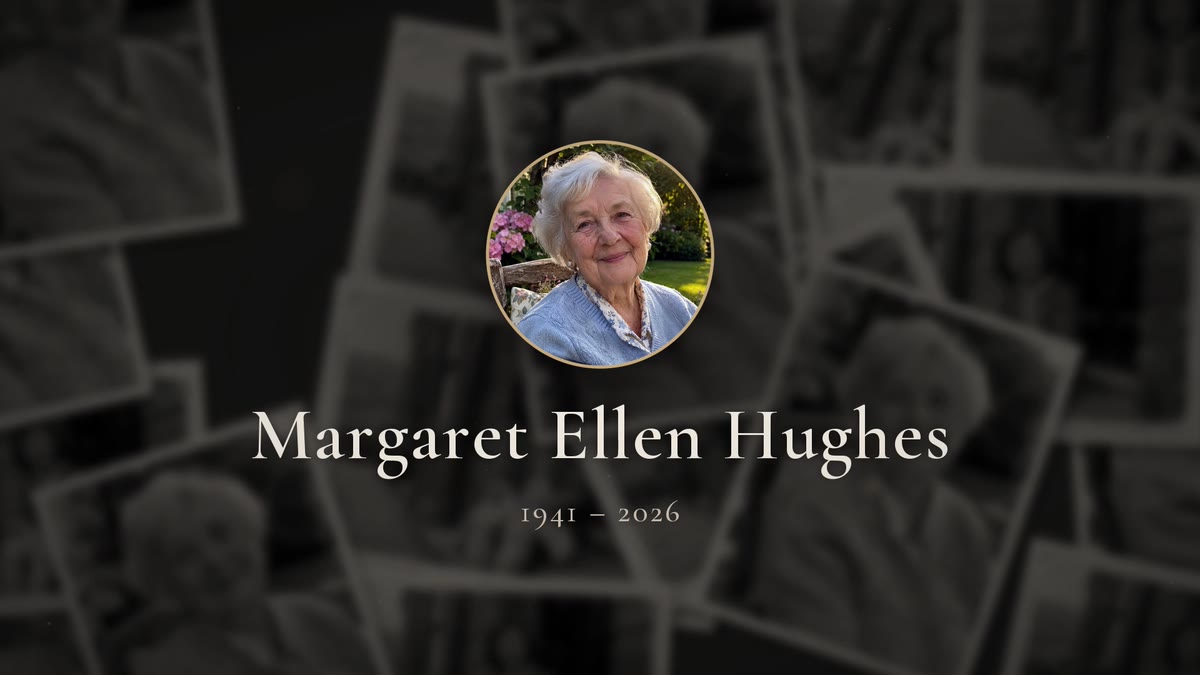
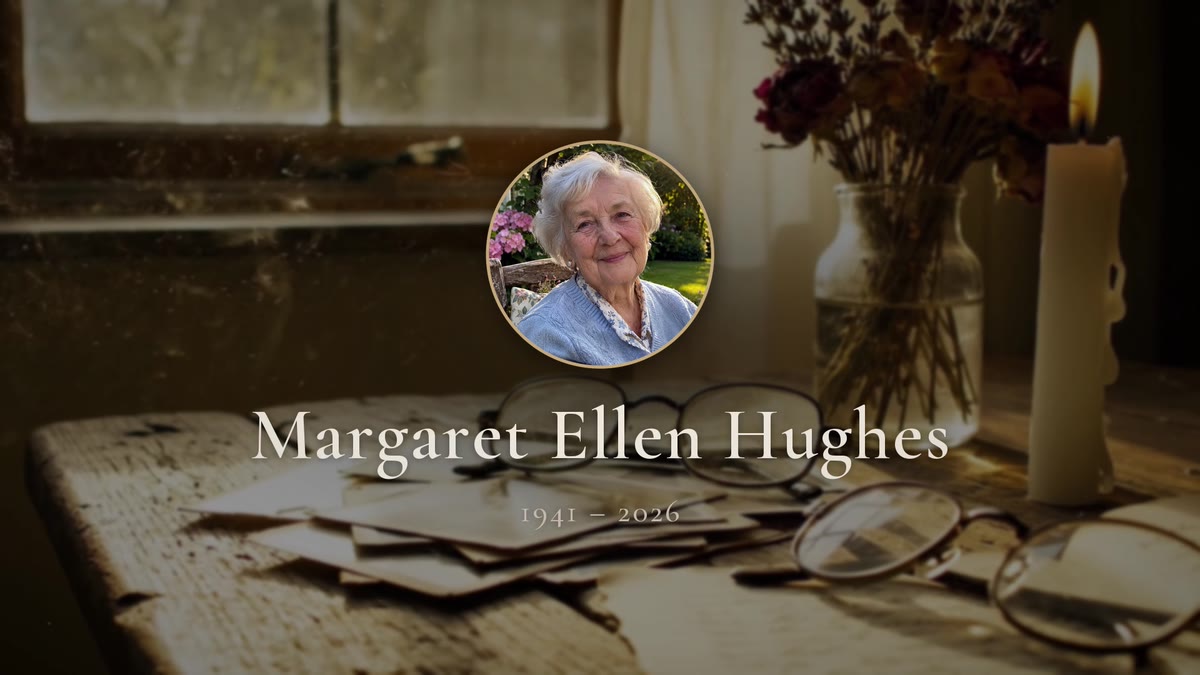
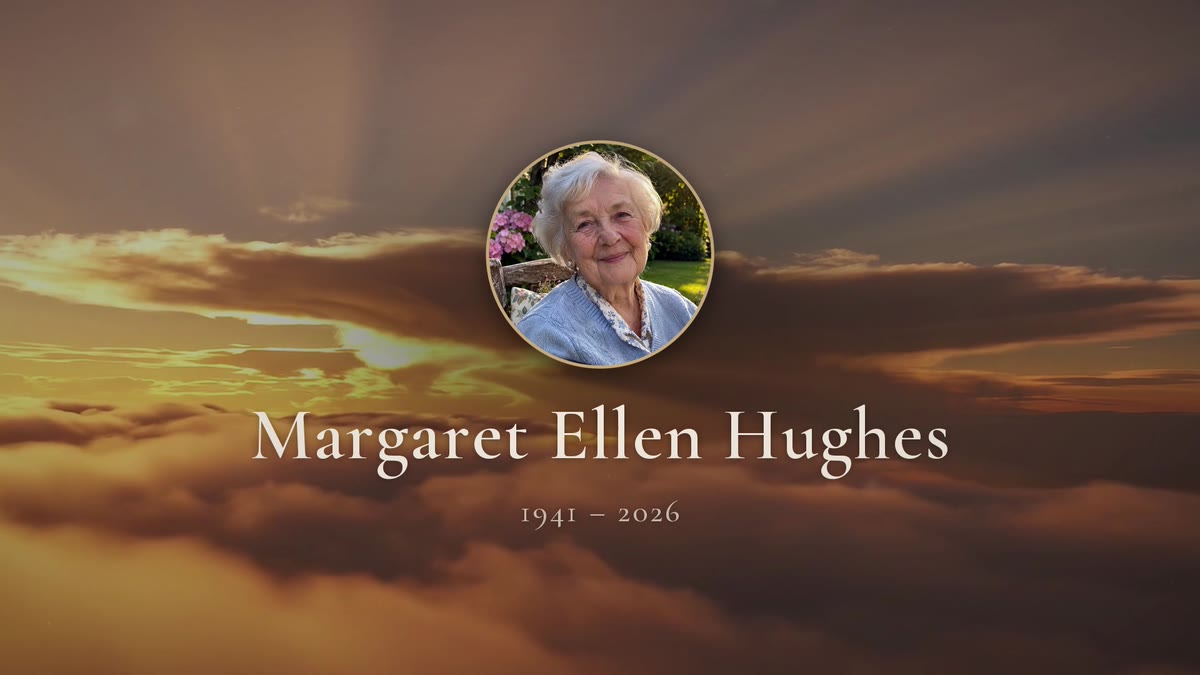
Every film opens with a title card with the name and dates. Each photo stays for 4.5 to 7 seconds, fitted to the music. One photo you choose is held for about 10 seconds near the end, and a closing quote stays for about 8 seconds. You choose from 12 included classical and hymn pieces; you can't upload your own song. The pictures above are title cards from our examples, made with a fictional family. You can watch each style on our funeral slideshow examples page.
You can re-make the preview up to 10 times before paying. When you are happy, pay once: Essential is $49 / £39 (up to 100 photos, 1 song) and Complete is $69 / £59 (up to 200 photos, 2 songs, chapter titles and captions). You download a Full HD 1080p MP4, and changes are free for 7 days after.
Free templates, paid templates or our styles
Paid templates are sold by template sellers, often for PowerPoint, Google Slides or Canva. Prices are set by each seller, so check the listing.
| Free templates | Paid templates (from template sellers) | Our styles | |
|---|---|---|---|
| Cost | Free; some programs charge for certain elements | A one-off price set by the seller | Free preview, then $49 / £39 or $69 / £59 once |
| Time to fill about 60 photos | Your time: you place each photo | Your time: you place each photo | Upload the photos; the whole-film preview is usually ready in about a minute or two |
| Music | You add it and fit it to the photos | You add it and fit it to the photos (check the listing) | 12 included classical and hymn pieces, fitted for you; no own song |
| MP4 output | You export it, if the program can | You export it, if the program can | Full HD 1080p MP4 |
Which one suits you?
| PowerPoint | Google Slides | Canva | Evermore Tribute | |
|---|---|---|---|---|
| Cost | Free if you already have it | Free with a Google account | Free plan; paid elements cost extra | Free preview, then $49 / £39 or $69 / £59 once |
| Who places the photos | You | You | You | Our engine |
| Your own song | Yes | Check before you start | Yes | No, 12 included pieces |
| Control over the look | Full | Full | Full | Choose 1 of 4 styles |
| Video file | Export as MP4 | Best presented live | MP4 download | Full HD 1080p MP4 |
| Suits | People who know PowerPoint and have an evening free | Families adding photos together | People who enjoy design | People short on time who would rather not design |
Making a funeral slideshow in PowerPoint
Menus differ a little between versions of PowerPoint and between Windows and Mac, but the steps are broadly the same.
- Choose a design. Start a new presentation and pick a calm design, or use a plain dark or light background. Set the slide size to widescreen (16:9) so it fills a modern TV.
- Make a title slide with their name and dates.
- Insert the photos. Use Insert, then Pictures, and add one photo to each slide. Some versions can make a photo album with one picture per slide in one go.
- Add transitions. On the Transitions tab, pick a gentle one such as Fade, and apply it to all slides.
- Set the timing. Still on the Transitions tab, untick "On Mouse Click", tick "After" and set about 5 to 6 seconds, then apply it to all slides.
- Add the music. On the first slide use Insert, then Audio, and choose the song from your computer. In the audio Playback settings, set it to play in the background across all slides.
- Check the length. Play the slideshow through and adjust the timing so the photos end with the music.
- Export as a video. Use File, then Export, and choose to create a video. Pick Full HD (1080p) if offered, and save it as an MP4.
- Test the file on another computer or TV before the day.
Our guide on how to make a funeral slideshow has more on choosing photos and a calculator for length, and our list of funeral slideshow songs may help with the music. Playing a commercial recording at a venue or in a live stream can need a licence, so ask the funeral director first.
PowerPoint slides out of sync with the music?
A common problem is a slideshow that matches the song in testing, then drifts so the last slides no longer line up with the music. Two fixes usually help:
- Set the slide timings to match the song length. Divide the song's length in seconds by the number of slides, and use that for "After" on every slide. Transitions can add a little time too, so play it through once and trim if needed.
- Export it as a video and check it. Once saved as an MP4, the timing is fixed. Watch the video file all the way through and check the last photo and the music end together; if not, adjust the timings and export again.
Questions families ask
Is there a free funeral slideshow template?
Yes. PowerPoint, Google Slides and Canva all have designs you can use for free, though you place the photos, add the music and export the video yourself. Canva asks you to pay for any elements marked as paid if you are on its free plan.
Can I make a funeral slideshow in PowerPoint?
Yes. Put one photo on each slide, add gentle transitions with about 5 to 6 seconds a slide, add a song to play across all slides, then export it as an MP4 video, choosing 1080p if offered.
Is there a celebration of life slideshow template?
The same templates work. Choose a brighter design and more cheerful music. With Evermore Tribute, Memory Deck and Heavenly Sky are often the best fit for a celebration of life.
Can I change the fonts or layout in Evermore Tribute's styles?
No. Our engine builds the film for you, so you choose one of four styles but can't move elements or pick fonts. If you want full control, a free template in PowerPoint, Google Slides or Canva will suit you better.
See the whole film free before you pay. No account and no card to start.
Make a free preview →